This section gives detailed information about the various photobooth settings. If you want to get started as quickly as possible you can use the photobooth setup wizard to set everything up and then come back to this page later to find out more about tweaking the various settings.
When Webcam Photobooth is run the main window shown below is displayed.
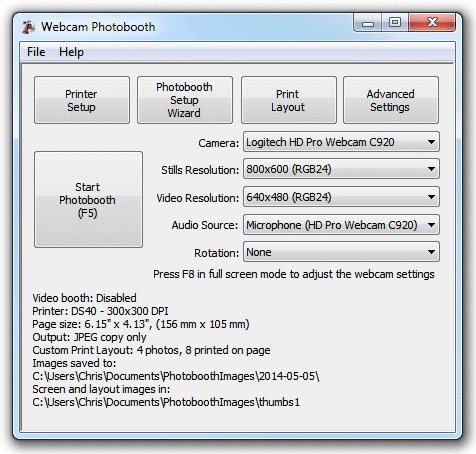
Click on the "Advanced Settings" button to setup the photobooth.
Display Settings
The display settings tab in the photobooth settings dialog is used to setup the number of photos, the input options and how the photobooth screens are displayed:
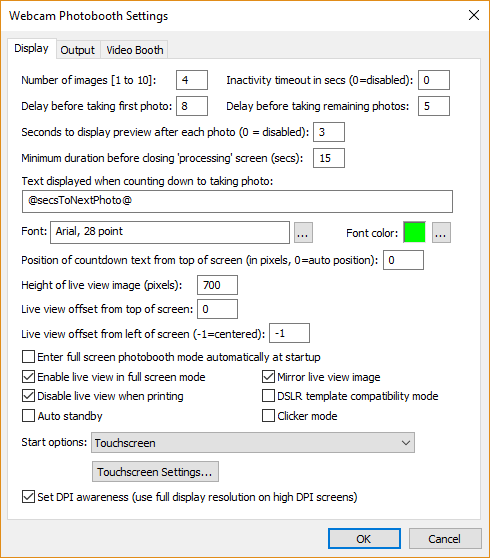
First select the number of images to be taken and the delay before taking each photo. The delay before taking the first photo can be set to a different value than that for the remaining photos. This is useful when using a touchscreen as it means a longer delay can be set before the first photo to give people time to move back from the touchscreen.
After taking each photo a preview can be displayed on the screen for a specified number of seconds (set this to 0 to disable the preview). When the "Minimum duration in seconds before closing 'processing' screen is set to 0 the 'processing' screen will be close as soon as the data has been sent to the printer. The 'processing' screen can be displayed for longer by adjusting this value. This is useful if you want to keep displaying a message such as "Thank you! Your photos are being printed, please leave the booth now" for longer than it takes to print the images.
The inactivity timeout can be enabled by setting the "Inactivity in secs" value to the required number of seconds e.g. 120. When the inactivity timeout is enabled the photobooth will automatically switch to standby mode and display the welcome.jpg screen if there is no activity (e.g. touching the screen to select different options) within the timeout.
A preview can be shown after taking each photo. To enable this set the Seconds to display preview after each photo" to the time in seconds the preview should be displayed.
When the "Minimum duration in seconds before closing 'processing' screen is set to 0 the 'processing' screen will be close as soon as the data has been sent to the printer. The 'processing' screen can be displayed for longer by adjusting this value. This is useful if you want to keep displaying a message such as "Thank you! Your photos are being printed, please leave the booth now" for longer than it takes to print the images.
The countdown text is displayed before shooting each image and is updated every second. The following tokens can be used when defining the countdown text:
@imageNumber@ - the shot number in the photobooth sequence
@numberOfImages@ - the number of images in the photobooth seconds
@secsToNextPhoto@ - the number of seconds until the next photo in the sequence is taken
By default the live view images are displayed at the top of the screen with the countdown text beneath. The position of the live view images can be adjusted using the "Live view offset from the top of the screen" setting.
If the count down text offset is set to 0 the count down text is automatically displayed centered in the spare space above or below the live view images (depending on whether there is more space above or below the live view images). Please make sure there is enough space for the count down text when setting the live view size and position.
Alternatively the countdown text can be manually positioned on the screen by setting the offset to a non-zero value. This value is the number of pixels the text is offset from the top of the screen. If required, the countdown text can be positioned so that it overlays the live view images.
Select "Enable live view for fullscreen photobooth shooting" to display live view images in the fullscreen photobooth shooting mode. The live view image can be mirrored so that the user sees the image the same way round as when looking in a mirror. Use the height setting to resize the live view images. The live view images can be positioned by using the settings for the offset in pixels from the top and the left of the screen. If the left offset is set to -1 the live view will be automatically centered on the screen.
The live view display can be cropped if required by selecting fullscreen photobooth mode and holding down the Shift key and using the cursor left and right keys to increase or decrease the cropping. Cropping removes equal amounts from the left and right of the live view image when displaying live view images in landscape orientation and from the top and bottom when using portrait orientation. When adjusting the live view cropping a status message showing the amount of cropping is shown briefly in the bottom right hand corner of the screen.
The live view display can be disabled during printing by selecting the "Disable live view when printing" checkbox. Disabling the live view during printing and displaying a suitable message in the 'processing' screen is a good way of encouraging people to leave the booth after the photos have been taken. For example you could disable live view during printing, set the minimum duration before closing the 'processing' screen to 15 secs and display the message "Thank you! Your photos are being printed and will be ready outside shortly, please leave the booth now" by editing the 'processing screen (processing.jpg).
Select the "Auto standby" option to have the booth automatically switch to standby mode at startup and after each set of photos. You can switch back to ready mode by typing F6 (toggle between standby and ready modes) or Ctrl+Alt+F6 (switch from standby to ready mode) or by using the "Toggle standby mode" or "Switch from standby to ready" touchscreen actions.
Clicker mode allows users to choose when to take each photo rather than the standard operation where the software automatically takes the photos at preset intervals. When clicker mode is selected the software will wait until each photo is taken either by users pressing a wireless remote (the "clicker"). The wireless remote (e.g. a wireless presenter) should be set up to send Ctrl+Z. The shooting sequence in clicker mode is:
| 1. | The ready.jpg screen and live view displayed as normal until the start button is pressed (e.g. by pressing F4) |
| 2. | When the start button is pressed the 1.jpg screen will be displayed with no countdown text and the software will wait until a photo is taken by pressing the button on the wireless remote and sending Ctrl+Z |
| 3. | After each photo is taken a preview is displayed on the screen if enabled in the photo booth settings and then the screen for the next photo is displayed e.g. 2.jpg |
| 4. | After the last photo has been taken the processing.jpg screen will be displayed and the photos printed as normal |
The following start options are available:
"Keyboard only (ignore mouse or touchscreen clicks)" |
This is the default setting where the photobooth sequence can be started using the normal keyboard shortcuts e.g. F4 |
"Left click anywhere to start" |
This setting allows a mouse or a touchscreen to start the photobooth sequence. The user simply needs to click the left mouse button or press anywhere on the display if using a touchscreen |
"Left click to start, right click to toggle B&W mode" |
This setting allows a standard mouse to be used to start the sequence (left click) or to toggle between B&W and color modes (right click) |
"Left click top left to start" |
This setting is designed for touchscreens and requires the user to click in the top left fifth of the screen to start the sequence. The ready.jpg image should be edited to show the user where to touch the screen to start the sequence. |
"Left click top left to start color sequence, bottom left for B&W" |
This setting is designed for touchscreens and requires the user to click in the top left fifth of the screen to start the sequence in color and the bottom left fifth to start it in black and white. The ready.jpg image should be edited to show the user which areas to touch to start the sequence. |
"Touchscreen" |
This setting allows up to 10 areas on a touchscreen to be given different actions (described in more detail below) |
Up to 18 areas can be defined on a touchscreen to control different photo booth settings such as starting the sequence, switching between color and B&W, selecting the number of print copies etc. First select the "Touchscreen" option in the "Start options" dropdown list and then click on the "Settings..." button to display the touchscreen settings dialog:
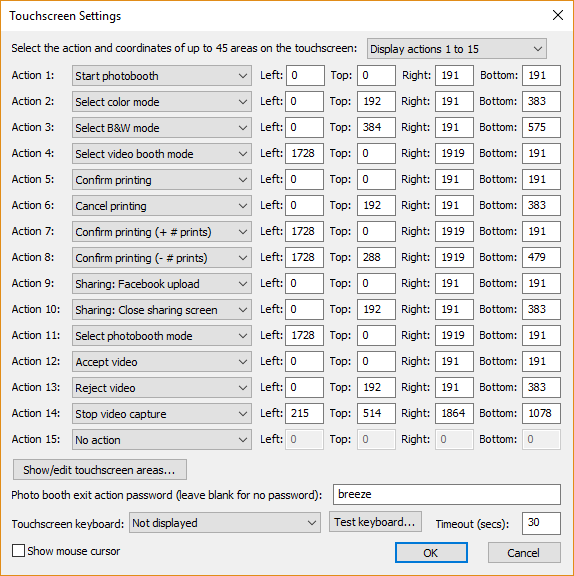
Select the action using the dropdown lists on the left and the area on the touchscreen that activates the action using the corresponding "Left", "Top", "Right" and "Bottom" edit boxes. The values entered in the edit boxes are the screen coordinates in pixels with the origin in the top left corner. The example in the screenshot above defines three sensitive areas on the touchscreen:
| 1. | A square area 300x300 pixels set in 10 pixels from the top left corner of the screen which starts the photobooth sequence (action is set to "Start photobooth") |
| 2. | A smaller rectangular area 300x150 pixels in size located below the first area which selects B&W mode |
| 3. | A second area similar to item 2 which selects color mode |
Touchscreen actions can also be viewed or edited interactively using a mouse by clicking on the "Show/edit touchscreen areas..." button. When the touchscreen action editor is first opened it will display the ready.jpg screen and the touchscreen actions for as boxes with white outlines and green text indicating the action. The action can be moved by clicking in the box and moving the mouse with the left button held down. The size of the box can be adjusted by dragging the corners with the left mouse button held down. Touchscreen actions can be deleted by right clicking on the action and selecting "Delete action" from the menu. New actions added by right clicking the mouse and selecting the "Add action...". Different screens can be displayed by right clicking the mouse and selecting the required screen.
Exit the touchscreen action editor by pressing the escape key or by right clicking the mouse and selecting "Exit" from the menu. If the touchscreen actions have been modified a confirmation dialog will be displayed asking you if you want to save the changes.
Please note: the touchscreen action editor only edits the positions of the touchscreen actions. It doesn't edit the JPEG screen images which display the graphics for the touchscreen buttons - to do this you need to use an image editor such as Photoshop Elements.
An optional password can be used to protect the "Exit fullscreen photobooth" action by entering the password in the "Photo booth exit action password" field. Many photo booth operators define a secret touchscreen action on the screen to exit photo booth mode which can cause problems if users find it because it will allow them to break out of full screen photo booth mode. Using a password to protect this should prevent problems if users manage to find the secret exit photo booth mode touchscreen action.
An optional touchscreen keyboard can be displayed at the start or end of the photo booth shooting sequence to allow users to enter information such as their email address. This information is stored in the XML file saved after each shooting sequence. Use the dropdown list to select when the touchscreen keyboard should be displayed and the "Test keyboard..." button to test it. The "Timeout (secs):" value allows a timeout for the keyboard to be specified. If the user does not touch the touchscreen before the timeout the touchscreen keyboard will be automatically closed.
Please see the section describing the touchscreen keyboard for more details.
Select the "Show mouse cursor" option to display a mouse cursor in screens that accept touchscreen input to allow a mouse to be used to control the photo booth. This can be convenient for testing when a touchscreen is not available or for allowing a mouse to have full control over a photo booth that does not have a touchscreen. Note: this setting is not saved in the XML settings files and is ignored when loading profiles.
Some tablets and laptops have very high resolution screens and the way Windows displays applications will depend on whether they are "DPI aware" or not. Older applications which are not high DPI aware are scaled up to avoid the text being too small to read. This means that the resolution of the screen available to the application is less than the actual screen resolution. The amount of display scaling depends on the "size of text, apps and other items" setting in the Windows display settings.
Newer applications that are high DPI aware automatically scale the text so that it can be read and can use the full resolution of the screen.
Webcam Photobooth has the option to operate as a "DPI aware" application and use the full screen resolution or to behave like a legacy application with a display that is scaled by Windows.
Example: Microsoft Surface Pro 4 tablet has a screen resolution of 2736x1824 pixels
If Webcam Photobooth is run with the "Set DPI awareness" option set the screen images will need to be 2736x1824 pixels in size to fill the screen.
If the "Set DPI awareness" option is not set the size of the screen images will depend on the "size of text, apps and other items" selected in the Windows display settings:
If it is set to 150% the screen images need to be 1824x1216 pixels
If it is set to 200% the screen images need to be 1368x912 pixels
Recommendation: select the "DPI aware" setting for all new designs and only disable it if you have old designs which don't fill the screen (you may also need to adjust the "size of text, apps and other items" Windows display setting)
The output settings tab in the photobooth settings dialog is used to setup where the photos are saved and they are printed:
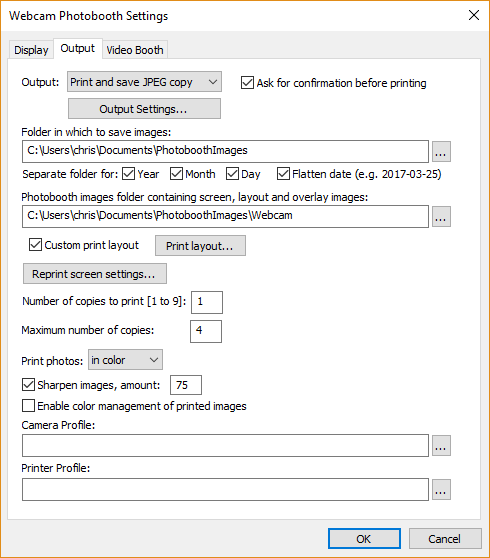
The output option can be set to "Print only", "Print and save JPEG copy" or "JPEG copy only". In normal use it is probably best to set this to "Print and save JPEG copy" so that each set of photos is printed and a JPEG copy is saved making it easier to print reprints later. The "JPEG copy only" option is useful for taking test shots and checking the layout without having to print them out each time.
Select "Ask for confirmation before printing" if you want to be able to decide whether to print the images or not. When this option is selected the print layout will be displayed on the screen with "Print" and "Cancel" buttons in the top left hand corner. Click on the "Print" button (or press the Enter key) to print the images or click on the "Cancel" button (or press the Esc key) to continue without printing.
Click on the "Settings..." button to the right of the output options to display the output settings dialog which allows you to configure the print preview and how JPEG copies of the printed output are handled and to configure the sharing of photos by Twitter, text or email:
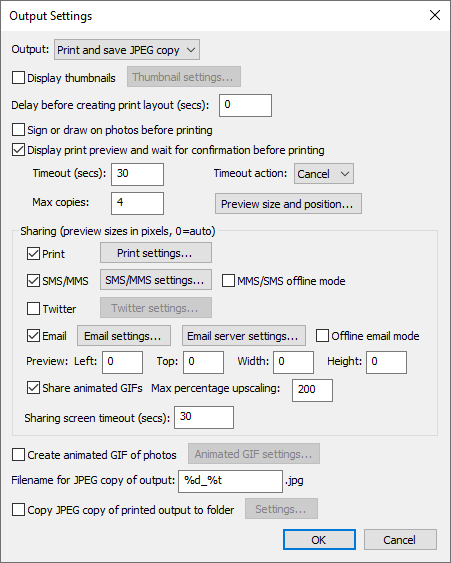
The "Output:" drop down list allows you to specify whether photos are printed only, printed with a JPEG copy of the layout saved in "prints" sub folder, a JPEG copy of the layout is saved in the "prints" sub folder without printing or no output action is taken. (This is the same as the "Output:" drop down list displayed in the main photo booth settings dialog).
Select "Display thumbnails" to display a small thumbnail of each photo. The thumbnails can be arranged vertically down one side of the screen or horizontally across the top or bottom of the screen. Click on the "Settings..." button to
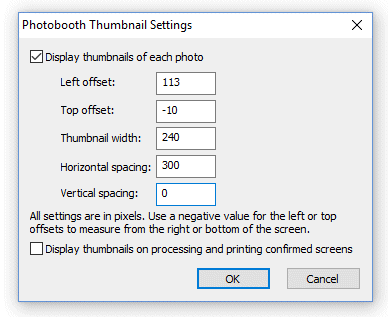
The left offset specifies the distance in pixels of the first thumbnail from the left edge of the screen. If a negative value is specified the distance will be measured from the right edge of the screen e.g. and value of -1 will place the first thumbnail on the right of the screen. The top offset specifies the distance in pixels of the first thumbnail from the top edge of the screen. If a negative value is specified the distance will be measured from the bottom edge of the screen e.g. and value of -1 will place the first thumbnail on the bottom of the screen.
The thumbnail width specifies the width of the thumbnail in pixels (the height of the image will be calculated automatically using the aspect ratio of the photo).
The horizontal and vertical spacings specify the positions of the remaining thumbnails relative to the first thumbnail. The settings in the screenshot above will place four thumbnails 240 pixels wide across the bottom of the screen and will be centered horizontally if the screen resolution is 1366 x 768.
The default setting is to only display thumbnails during the photo booth countdowns when taking the photos and not to show them at the end of the shooting sequence on the processing or printing confirmed screens. Select the "Display thumbnails on processing and printing confirmed screens" if you also want the thumbnails to be displayed at the end of the shooting sequence when the processing or printing confirmed screens are displayed.
The "Delay before creating print layout (secs):" setting is normally set to 0 so that photos are printed as soon as possible. This setting is useful if the photos need to be modified by another program (e.g. by running a Photoshop droplet to edit the photos or using a green screen program to create high quality green screen photos) before they are printed by Webcam Photobooth. Please see the section on "Modifying Photos Before Printing" for information on how to use this option.
Select the "Sign or draw on photos before printing" option if you want to allow users to draw on the print layout before it is printed. This option is useful for letting users sign their photos when running a magic mirror photo booth with a touchscreen. Please see the section on "Signing or Drawing on the Prints" for more information on using this setting.
Select "Display print preview and wait for confirmation before printing" in the "Output Settings" dialog if you want to be able to decide whether to print the images or not (this is the same as the "Confirm before printing" checkbox displayed in the main photo booth settings dialog). When this option is selected the print layout will be displayed on the screen with "Print" and "Cancel" buttons in the top left hand corner. Users should click on the "Print" button (or press the Enter key or A key) to print the images or click on the "Cancel" button (or press the Esc or key or X key) to continue without printing. Users can also press the P key (or tap on the "Confirm printing (no JPEG copy)" touchscreen action) to print without copying the JPEG copy of the printed output to a separate folder. This is useful if you want to offer users the choice of printing only or printing and copying the output to a separate folder (e.g. copying to a folder on another computer running Breeze Kiosk).
The "Maximum number of copies" setting limits the maximum number of print copies the user is allowed to select.
If the touchscreen input mode is selected and touchscreen actions for confirm or cancel printing are defined the "Print" and "Cancel" buttons will not be displayed. The touchscreen sensitive areas can be displayed using the confirm_printing.jpg screen image.
If a confirm_printing.jpg screen image is in the photo booth images folder this will be used for the background to the print confirmation window to allow instructions or touchscreen buttons to be displayed.
If a printing_confirmed.jpg screen image is in the photo booth images folder this will be displayed if the user selects printing. This allows the processing.jpg screen to show a message like "Processing, please wait..." and the printing_confirmed.jpg to display a message like "Thank you, please leave the booth now. Your photos are being printed outside."
Please note that if the "Sign or draw on photos before printing" option is selected the drawing screen can be used to accept or reject the photos and to select the number of copies to print. In most cases the print confirmation screen is not required if the "Sign or draw on photos before printing" option is used.
Click on the "Preview size and position..." to specify how the print preview image should be displayed:
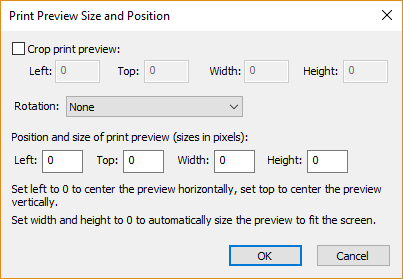
The print preview can be cropped by enabling "Crop print preview" and specifying the top left corner and the width and height of the cropped area (these settings are in pixels). This is useful when printing double strips where two 2"x6" strips are printed on a single sheet of 4"x6" paper and automatically cut into two 2"x6" strips by the printer. The print preview would normally show the whole 4"x6" print with the two strips side by side, but by cropping the print preview just one strip can be displayed. For example a typical dyesub printer prints at 300 dpi giving a print size of 1200x1800 pixels when printing 4"x6" media in portrait orientation. This can be cropped so that only the left half of the strip is displayed in the print preview by setting left=0, top=0, width=600, height=1800.
The print preview can be rotated by 90 degrees CW, 90 degrees CCW or 180 degrees using the rotation setting. Normally this can be set to "None". If the print preview is displayed on its side it probably means that the page orientation is set incorrectly in the printer settings. The rotation setting can be used to compensate for this, but it would be better to change the page orientation setting in the printer settings and update the print layout.
The size and position of the print preview can be set print preview offset, width and height settings. If these are all set to zero the print preview will be sized to fill the window and will be centered on the screen. The print preview can be moved on the screen, e.g. to make space for the print confirmation buttons, using the left and top offset settings. For example to leave a space 200 pixels wide on the left of the screen set the print preview left offset to 200. If the print preview width and height settings are set to 0 the print preview will be resized to fill the rest of the screen. Set the print preview width and height settings to values other than 0 to specify the size of the print preview image.
Use the "Timeout (secs):" to specify a timeout for how long the print preview should be displayed (the default timeout is 300 secs). Set the timeout action dropdown list to the action that should be performed when the timeout occurs (the default setting is to cancel the print).
Use the sharing options to enable the sharing of photos by Tweeting, texting (MMS or SMS) or by sending photos email. Please see the section on uploading to social networks for information on how to set this up.
Select the "Share animated GIFs" to enable the sharing of animated GIFs by email, Twitter or texting.
Please note: When sharing animated GIFs please note that the files can be large and so it is best to keep the image size small to avoid excessively large files for sharing. This can result in the animated GIF appearing very small in the sharing screen. The preview can be made large by increasing the "Max percentage upscaling setting" e.g. set this to 200 to display the animated GIF 2x normal size or 300 for 3x normal size.
Select the "Printing" option to give users the option to print photos in the sharing screen. Users can print the photos by typing P or by using the "Sharing: Print photos" touchscreen action. Photos can be printed if the output is set to "Print and save JPEG copy" or "JPEG copy only". The share_printing.jpg screen is displayed for a minimum of 5 seconds each time the user selects printing from the sharing screen. The number of prints that can be made from the sharing screen can be limited by clicking on the "Settings..." button:
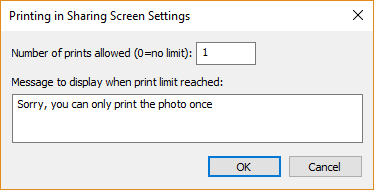
Set the "Number of prints allowed" to the maximum number of prints allowed or to 0 if there is not limit. Then enter the message that is displayed if the user tries to print more copies than is allowed.
If the user prints the photos one or more times from the sharing screen the photos additional copies won't be printed if the output is set to "Print and save JPEG copy". If the user doesn't print the photos from the sharing screen and the output is set to "Print and save JPEG copy" the photos will be printed when the sharing screen is closed using the currently selected number of print copies.
By default the sharing screen shows a print preview image centered on the screen with a height of no more than 2/3 the height of the screen. This setting can be overridden by setting the preview left, top, right and bottom settings to non-zero values. The left value is the offset in pixels from the left edge of the screen. The top value is the offset in pixels from the top edge of the screen. The width and height values specify the maximum width of the preview image in pixels.
Select the "Create animated GIF of photos" option to created an animated GIF of the photos taken with an optional overlay and title page.
Please see the Animated GIF section for details on how to set up animated GIFs in stills photo booth mode and in video mode.
When the output option is set to "Print and save JPEG copy" or "JPEG copy only" the filename of the JPEG copy of the printed output can be specified using the "Filename for JPEG copy of output:" edit box. This value can use tokens to specify values which are determined at run time e.g. %d represents the date and %t the time. Please see the section on tokens for a list of available tokens. The JPEG copy of the printed output is an exact copy of what is sent to the printer and can be used for reprints after an event.
An optional second copy of the printed output can be saved in a different folder by selecting the "Copy JPEG copy of printed output to folder:" option. Click on the "Settings..." button to display the "Copy JPEG Settings" dialog:
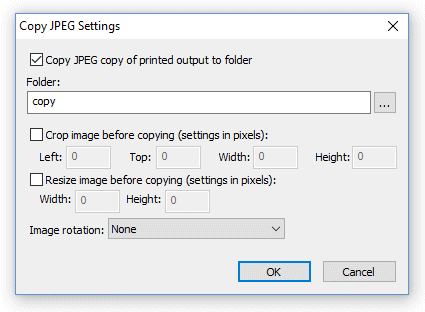
You can specify the folder where the additional copy of the printed output is saved using the "Folder:" edit box. If this is left empty the JPEG will be saved in a sub folder named "copy". You can also enter the full pathname of the folder where the images should be copied to (e.g. "C:\Print copies") or the name of a different sub folder (e.g. "Backup"). The folder name can also use tokens to specify values which are determined at run time. The second copy of the print output can also be cropped, resized and rotated before it is saved.
Specifying the output folder
These settings control where images are stored on the computer's hard disk. The edit box displays the base folder for images and can be changed by typing directly into the edit box or by clicking on the "..." button and using the directory browser. If the Year, Month and Day checkboxes are not checked this will be the folder in which all images are stored.
Note: If the directory does not already exist it will be created when the photo is saved.
The Year, Month and Day checkbox control the automatic generation of subfolders according to the computer's date. The example image name shown at the bottom of the dialog shows how the various settings are combined. Select the "Flatten date" checkbox to combine the year, month and day into a single subfolder e.g. on November 30, 2010 with "Flatten date" unchecked images would be saved in "C:\Photobooth\2010\03\30" and when it is checked they would be saved in "C:\Photobooth\2010-03-30".
When the output option is set to "Print and JPEG copy" or "JPEG copy only" the JPEG copy of the print layout will be saved in the "Prints" subfolder e.g. "C:\Photobooth\2010\03\30\Prints" or "C:\Photobooth\2010-03-30\Prints" in the example above.
Color Management
Select the "Enable color management of printed images" checkbox to color manage the printing of photos for more accurate colors. Then select suitable color profiles for the camera and printer. If your camera does not come with a color profile the standard sRGB color profile can be used instead.
IMPORTANT: Please disable color management in the printer driver when selecting color management in Webcam Photobooth otherwise the colors may be adjusted twice.
Print layout
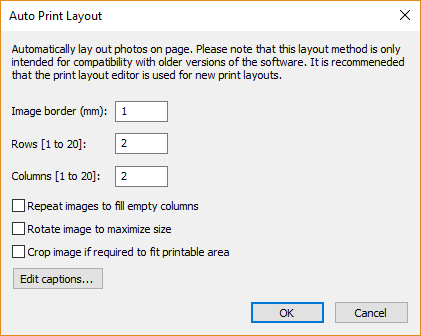
The recommended method for creating a print layout is to use the print layout editor and one of the preset print layouts. The automatic print layout method described below as been retained for compatibility with older versions of Webcam Photobooth. The automatic print layout option is used if the "Custom layout" checkbox is not selected and the options can be accessed by clicking on the "Print layout.." button:
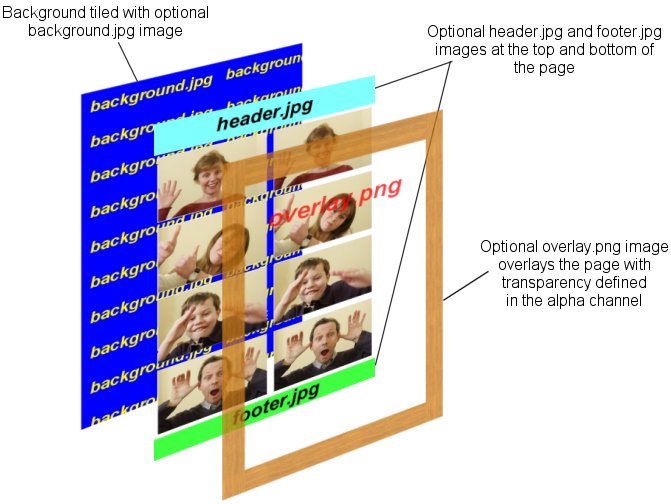
The print can have an optional background with a header and or footer image. When Webcam Photobooth prepares the image for printing it looks for the following files in the photobooth images folder:
background.jpg - optional image which is tiled to fill the background of the printed page
header.jpg - optional image which is centered and placed at the top of the page
footer.jpg - optional image which is centered and placed at the bottom of the page
left.jpg - optional image which is centered vertically and placed on the left of the page between the header and footer
right.jpg - optional image which is centered vertically and placed on the right of the page between the header and footer
middle.jpg - optional image which is centered vertically and placed between each column of images
image_overlay.png - optional image which is overlays each photo and uses transparency information stored in the alpha channel
overlay.png - optional image which is overlays the page and uses transparency information stored in the alpha channel
The images are then arranged in a grid which fills the printable area of the page less any space taken up by a header or footer image. If the "Rotate image to maximize size" checkbox is selected the images are rotated through 90 degrees if this would give a larger image. e.g. if the printable area for the image within the grid is 80mm high and 50mm wide and the image was shot in landscape orientation it would be rotated by 90 degrees to better fill the printable area.
If the number of images matches the number of rows the images can be repeated in each column by selecting "Repeat images to fill empty columns". This is useful when printing strips of images on paper from a dye sublimation printer e.g. two copies of 4x1 strips on a sheet of 8x6 paper.
Other output options
If the "Crop image if required to fit the printable area" checkbox is selected the image will be cropped to fill the printable area within the grid. e.g. if the printable area within the grid is square equal portions of the left and right of the image will be cropped to make it square. Please note that this option is disabled when custom layout is selected.
Photos can be printed in color, pure black and white or toned black and white by selecting the appropriate option from the dropdown list headed "Print photos:". You can also switch between these options when the software is running in fullscreen photobooth mode by using the following keyboard shortcuts: Ctrl+C to select color, Ctrl+B to select black and white, Ctrl+T to select toning.
When the "toned" option is selected you can specify the hue (i.e. the color of the toning) and the saturation (i.e. the strength of the toning). For sepia toning a value of around 200 for the hue and 40 for the saturation is a good starting point. The hue and saturation settings can also be adjusted when the software is running in fullscreen photobooth mode by using the following keyboard shortcuts: Ctrl+cursor left/Ctrl+right to adjust the hue and Ctrl+cursor up/Ctrl+down to adjust the saturation. A status message showing the current settings is briefly displayed in the bottom right hand corner of the display when adjusting the hue and saturation in fullscreen photobooth mode.
The images can be sharpened by selecting the "Sharpen images" checkbox and specifying a sharpening amount in the range 0 to 100. The amount of sharpening required depends on personal taste, the camera and the printer. A value of around 75 is a good starting point.
Captions
Up to 8 captions can be added by selecting the "Edit captions..." button:
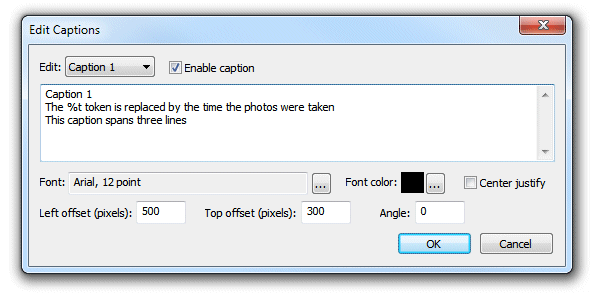
To enable a caption select it from the "Edit:" drop down list. Then check the "Enable caption" checkbox to enable the caption or uncheck it to disable the caption.
Each caption can occupy more than one line if required and is left justified by default. Select the "Center justify" checkbox to center justify multiple lines. The size, font, color and rotation (in degrees clockwise) of the caption text can also be specified. The font size is calculated using the printer resolution and so a 72 point font should give text one inch high (one 'point' is 1/72 of an inch). The caption is printed in the selected font color with a transparent background. Tokens can be used in the caption text to insert values such as %d for the date and %t for the time the sequence started, {comment} for the comments entered in the main screen and {filename} for the filename used for the JPEG copy of the print layout. Please see the section on tokens for a list of tokens available.
Enter the position for the captions as offsets in pixels from the top and the left of the page.
The easiest way to see how this all fits together is to run Webcam Photobooth and take some test shots. First setup the printer settings by selecting "Printer Setup..." from the File menu and then set basic photobooth settings using the setup dialog. Set the output mode to "JPEG copy only" then take a test sequence by pressing F5 to start fullscreen photobooth mode and F4 to start the picture taking sequence. This will take a sequence of images and save the layout in the prints subfolder where images are saved. Load this image into an image editor (or BreezeBrowser Pro) to view the layout. Then make any changes to the background.jpg, header.jpg, footer.jpg or overlay.png images and the photobooth settings and take more test shots until you're happy with the layout.
Tip: To save having to setup the printer preferences every time Webcam Photobooth is run you can go to the Windows Control Panel, select "Printers and Faxes" then right click on the printer to change its preferences.
Some example layouts using four shots arranged in two columns of four:
|
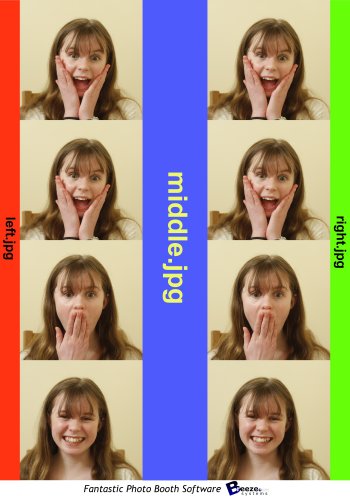
With left.jpg down the left border, middle.jpg placed between the columns, right.jpg down the right border and footer.jpg at the bottom
|
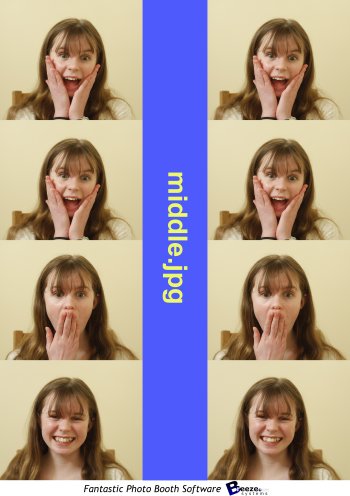
Same layout as the first example but with no left.jpg or right.jpg images defining the left and right borders
|
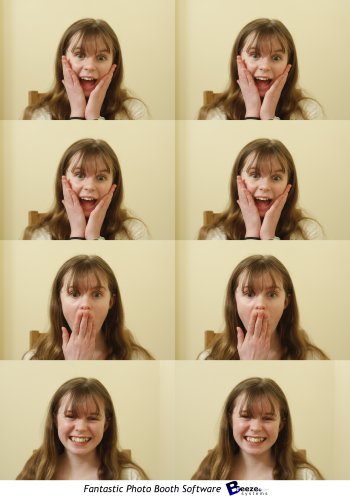
Same layout as the previous example but with no middle.jpg image placed between the columns
|
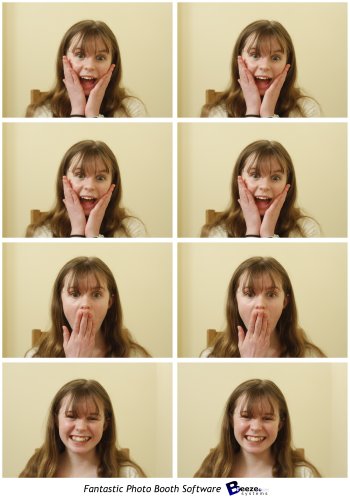
Same layout as the previous example but with a 2mm border around each image
|
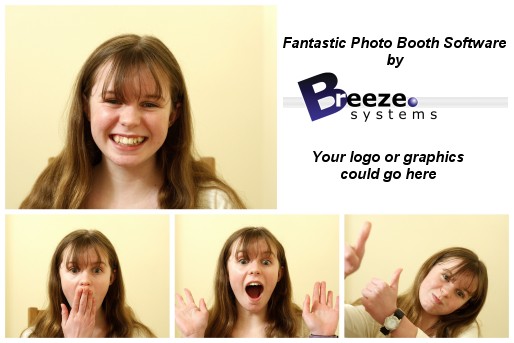
A custom layout where the size and position of each photo is specified individually
External commands can be used to customize the way the photobooth works e.g. by emailing images or turning lights on and off. There are two different ways external commands can be run when shooting in full screen photobooth mode:
| 1. | When the photobooth screen changes during the photobooth shooting sequence |
| 2. | When the XML summary file is written after the photobooth output has been printed or saved |
Running commands when the photobooth screen changes (experimental)
This allows a command to be run each time the photobooth screen changes during the photobooth shooting sequence. The full pathname of the screen image is passed as a command line argument to the command e.g. C:\Program Files\BreezeSys\Webcam Photobooth\PhotoboothImages\ready.jpg. To enable this two values need to be stored in the Windows registry: PhotoboothStatusCmdEnable and PhotoboothStatusCmd (see below for details).
Running a command when the XML summary file is written (experimental)
This allows a command to be run after the photobooth output has been saved or printed and the XML summary file has been written. The full pathname of the XML summary file is passed as a command line argument to the command. To enable this two values need to be stored in the Windows registry: PhotoboothStatusCmdEnable and PhotoboothStatusCmdXML (see below for details).
Windows registry settings
To enable the photobooth screen change or XML summary file commands the following REG_DWORD value in the Windows registry should be set to 1:
HKEY_CURRENT_USER\Software\BreezeSystems\WebcamPhotobooth\101\PhotoboothStatusCmdEnable
The photobooth screen change command is defined using the following REG_SZ value:
HKEY_CURRENT_USER\Software\BreezeSystems\WebcamPhotobooth\101\PhotoboothStatusCmd
The XML summary file command is defined using the following REG_SZ value:
HKEY_CURRENT_USER\Software\BreezeSystems\WebcamPhotobooth\101\PhotoboothStatusCmdXML
Enter an empty string or delete the registry value for PhotoboothStatusCmd or PhotoboothStatusCmdXML if you want to run one command but not the other. The values can be edited using the Windows regedit utility or by creating a registry file like the one below, giving it a .reg file extension and then double clicking on the file in Windows Explorer to copy the settings to the registry:
Windows Registry Editor Version 5.00
[HKEY_CURRENT_USER\Software\BreezeSystems\WebcamPhotobooth\101]
"PhotoboothStatusCmdEnable"=dword:00000001
"PhotoboothStatusCmd"="C:\\Program Files\\BreezeSys\\Webcam Photobooth\\PhotoboothImages\\status.exe"
"PhotoboothStatusCmdXML"="C:\\Program Files\\BreezeSys\\Webcam Photobooth\\PhotoboothImages\\statusXML.exe"