When you install Webcam Photobooth you need to activate your license on each PC it is running on. Activating the software is a quick and simple procedure if the PC has access to the internet, however, we recommend activating the PC at least 48 hours before an event. You can still activate a computer which does not have access to the internet, but this involves sending an email to sales@breezesys.com and will take longer than activating the software online. Each license can be activated on two computers, providing only one computer is used at once.
You must deactivate the software before making any hardware changes, upgrading or repairing the PC, reinstalling Windows or reformatting a hard disk. The software can then be reactivated after the work has been done.
Topics covered in this section:
The latest version of Webcam Photobooth can be downloaded from www.breezesys.com.
To install Webcam Photobooth simply download and run the setup program then follow the on-screen instructions.
Webcam Photobooth can be uninstalled using the standard Windows "Uninstall a program" option in the Programs section of the Windows Control Panel.
IMPORTANT: Please deactivate Webcam Photobooth before uninstalling otherwise you may not be able to activate the software on another computer. If you forget to deactivate the software you should be able to reinstall the software, deactivate it and then uninstall.
The trial evaluation version of the software is identical to the registered version and is fully functional for 15 days. Each time you run the software it will display the registration dialog allowing you to enter a registration code or press the "Evaluate" button to continue evaluating the software:
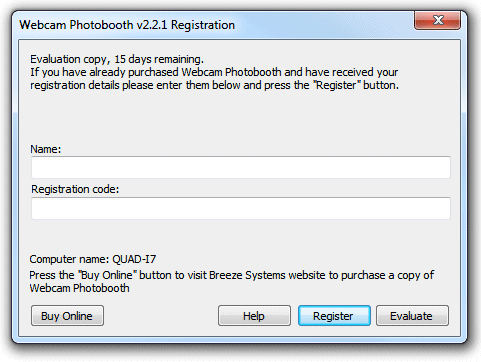
At the end of the 15 day trial period you must purchase a license to continue using the software.
To purchase a license for Webcam Photobooth please visit our website: http://www.breezesys.com/purchase_webcam.htm. You will be sent an email containing your registration details when your payment has been received.
To register Webcam Photobooth run the application enter your registration name and code exactly as they appear in your registration email. You may find it easier to copy and paste both the registration name and code directly from your registration email to avoid mistakes when entering it. Please keep a copy of your registration email safe in case you need to re-enter your registration details.
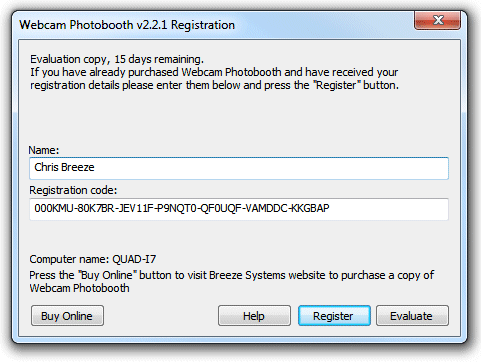
Click on the "Register" button after entering your name and registration details. If the details are correct the message below will be displayed. An error message will be displayed if the name and registration code are not valid (e.g. they were not entered correctly) or if you need to purchase an upgrade to use this version of the software.
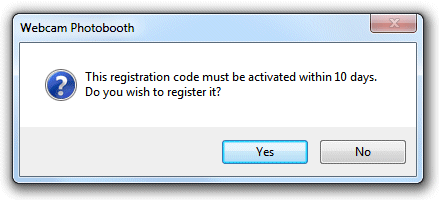
Click on the "Yes" button to register the software and the following message will be displayed asking you whether you want to activate the software on this computer:
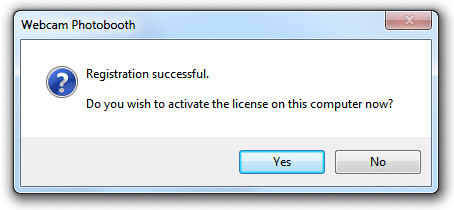
Click on the "Yes" button to activate the software on this computer (see the section below for details).
The software must be activated on the computer before it can be used. The software can be run without activating for up to 10 days after the the date when the registration code was issued. After that time the software will not run unless it is activated. Each license can be activated on two computers, providing only one computer is used at once. If you wish to move the software to a different computer you must deactivate it from the old computer before activating it on the new computer. Once the software has been activated on a computer you can run it normally.
To activate the software click on the "Activate..." button in the registration dialog
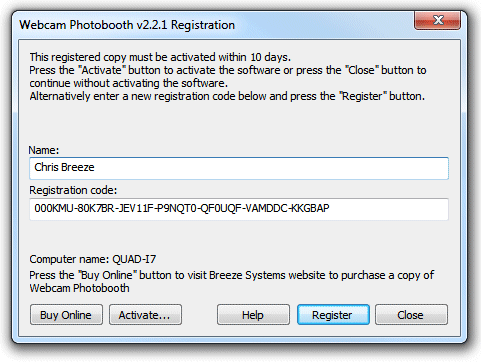
and the activation dialog below will be displayed:
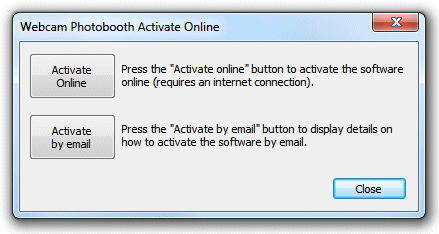
The quickest and simplest way to activate the software is to do it online by pressing the "Activate Online" button. Please note that the computer must have an internet connection and the program must be allowed to access the internet in order to activate the software online.
Please note that it may take up to 30 seconds to activate the software online.
If the computer is not connected to the internet you can activate the software by email by clicking on "Activate by email" button and the dialog below will be displayed:
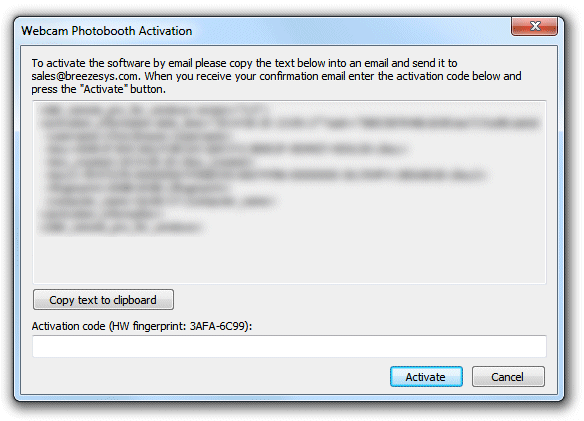
It is important that you copy all of the text and email it to sales@breezesys.com. Please do not modify the text otherwise we may not be able to validate it. The simplest way to copy the text is to press the "Copy text to clipboard" button and then paste it into the email by typing Ctrl+V. If the computer doesn't have email you can copy the activation text to a USB memory stick and then read it on a computer which does have email.
You should normally receive an email containing your activation code within 12 hours of sending the activation request email. Paste your activation code into the "Activation code" text area at the bottom of the activation dialog and click on the "Activate" button to activate the software. If you have closed the activation dialog you can display it again by running the software and then clicking on the "Activate..." button in the registration dialog followed by the "Activate by email" button.
The software can only be activated on up to two computers at any given time. If you wish to move the software to a different computer you must deactivate it from the old computer before activating it on the new computer.
You also need to deactivate the software before making any hardware changes, upgrading or repairing the PC, reinstalling Windows or reformatting a hard disk. The software can then be reactivated after the work has been done.
To deactivate the software select "Register..." from the Help menu in the main window to display the registration dialog:
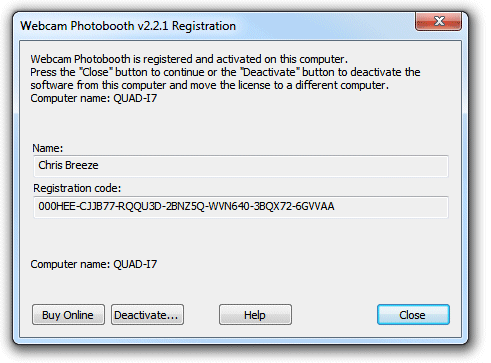
Then click on the "Deactivate..." button to display the deactivation dialog:
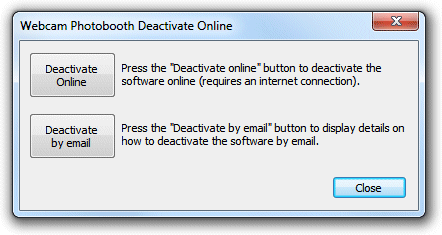
The quickest and simplest way to deactivate the software is to do it online by pressing the "Deactivate Online" button. Please note that the computer must have an internet connection and the program must be allowed to access the internet in order to deactivate the software online.
Please note that it may take up to 30 seconds to deactivate the software online.
If the computer is not connected to the internet you can deactivate the software by email by clicking on "Deactivate by email" button and the warning dialog below will be displayed:
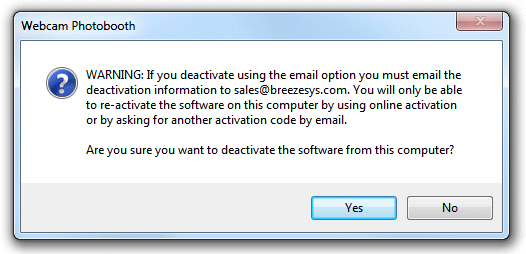
Click on the "Yes" button if you want to continue and the deactivation dialog below will be displayed:
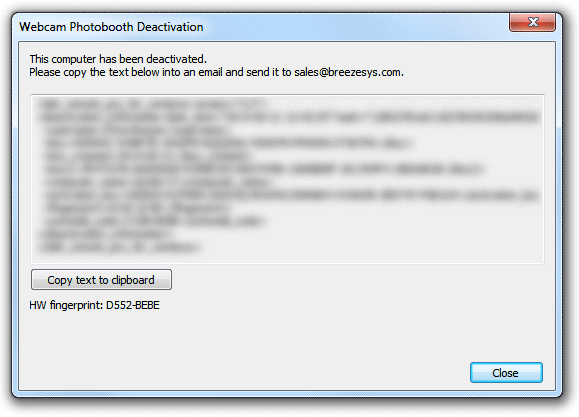
It is important that you copy all of the text and email it to sales@breezesys.com. Please do not modify the text otherwise we may not be able to validate it. The simplest way to copy the text is to press the "Copy text to clipboard" button and then paste it into the email by typing Ctrl+V. If the computer doesn't have email you can copy the text to a USB memory stick and then read it on a computer which does have email.
You should normally receive an email acknowledging the deactivation code within 12 hours of sending the request email. If you forget to copy the deactivation information and email it to sales@breezesys.com you can display it again by selecting "Register..." from the Help menu in the main window and clicking on the "Display" button. Please note that the copy of the deactivation information will be not be available after another registration code has been entered.
Moving the software to a different PC
The software can be activated on up to two computers at any given time and so if you are moving the software to a different PC you should deactivate the software from the old PC first. Then install the software on the new PC, then register and activate the software.
If you are planning to move the software to a different PC permanently please following the instructions for decommissioning a PC.
You need to deactivate the software before making changes to your PC such as upgrading the PC hardware, reformatting a hard disk, reinstalling Windows, upgrading Windows or getting a PC repaired.
Simply deactivate the software online (or by email if the PC doesn't have access to the internet), make the changes and then re-activate the software. If Windows has been reinstalled or the hard disk has been replaced or reformatted you may need to re-install Webcam Photobooth, re-enter your name and registration code and then activate the software.
The latest release and previous releases of the software can be downloaded from the upgrades page on the Breeze Systems website.
IMPORTANT: Please make sure you have a copy of your name and registration code before making changes to your PC just in case you need to re-enter them later
If you are decommissioning a PC and planning to sell it or give it to somebody else you need to deactivate the software and remove your registration details. It is very important that you remove your registration details even if you have uninstalled the software otherwise the new owner may be able to reinstall the software and gain access to your registration details. If someone obtains your registration details they will be able to register and activate the software on their computer and could prevent you from using it on your computer.
After deactivating the software you can remove your registration details by entering the special registration code below:
Name: Uninstall
Code: 000JJ3-ED5Y4G-PJAPFB-1YYQJ7-05N0HC-XWW7YT-JKZZBV
This will install a special old code which replaces your registration details and will cause the software to display an "Upgrade required" message when it is run.
If you decide to use the computer again you can reinstall the software, enter your registration details and activate software.
You can check for updates by selecting "Check for updates online". This will connect to the internet and display details of the latest version Webcam Photobooth in your web browser. Alternatively go to the Webcam Photobooth page on our website: http://www.breezesys.com/Webcam
If the error message "The server name or address could not be resolved" is displayed when you try to activate or deactivate the software online it means that the PC is unable to access the internet. Please check that that the computer is connected to the internet and check your firewall settings to make sure that WebcamPhotobooth.exe (the Webcam Photobooth program) is allowed to access the internet. If you are still unable to activate the software online you may need to activate it by email instead.
If a different error message is displayed please follow the instructions displayed in the error message. If you are not sure what to do please email sales@breezesys.com and include your registration name and code and details of the error message.
Please also see the support page on the Breeze Systems website for help with activation problems.